

Connecting Granola
Where notes appear
Open any calendar event that was recorded in Granola and the notes show up in the event detail panel, alongside attendees, location, and video link. From there, the AI agent can reference the notes when you ask it to prep for a related meeting or draft a follow-up email.
What syncs
| Field | Direction |
|---|---|
| Meeting title and time | Granola to Slashy |
| Attendees | Granola to Slashy |
| Summary and notes | Both directions |
| Action items | Both directions |
Notes attached to events you were not invited to do not sync. Only meetings on your connected calendars are eligible.
Using notes with the AI agent
Once notes are syncing, the agent treats them as context alongside your email and memories. Useful prompts:- “Prep me for my next call with Sarah.” The agent pulls the most recent Granola notes from prior meetings with her.
- “Draft a follow-up to yesterday’s Acme meeting.” The agent uses the action items captured in Granola.
- “Summarize what we agreed with the design team this month.” The agent reads across recent meeting notes.
Disconnecting
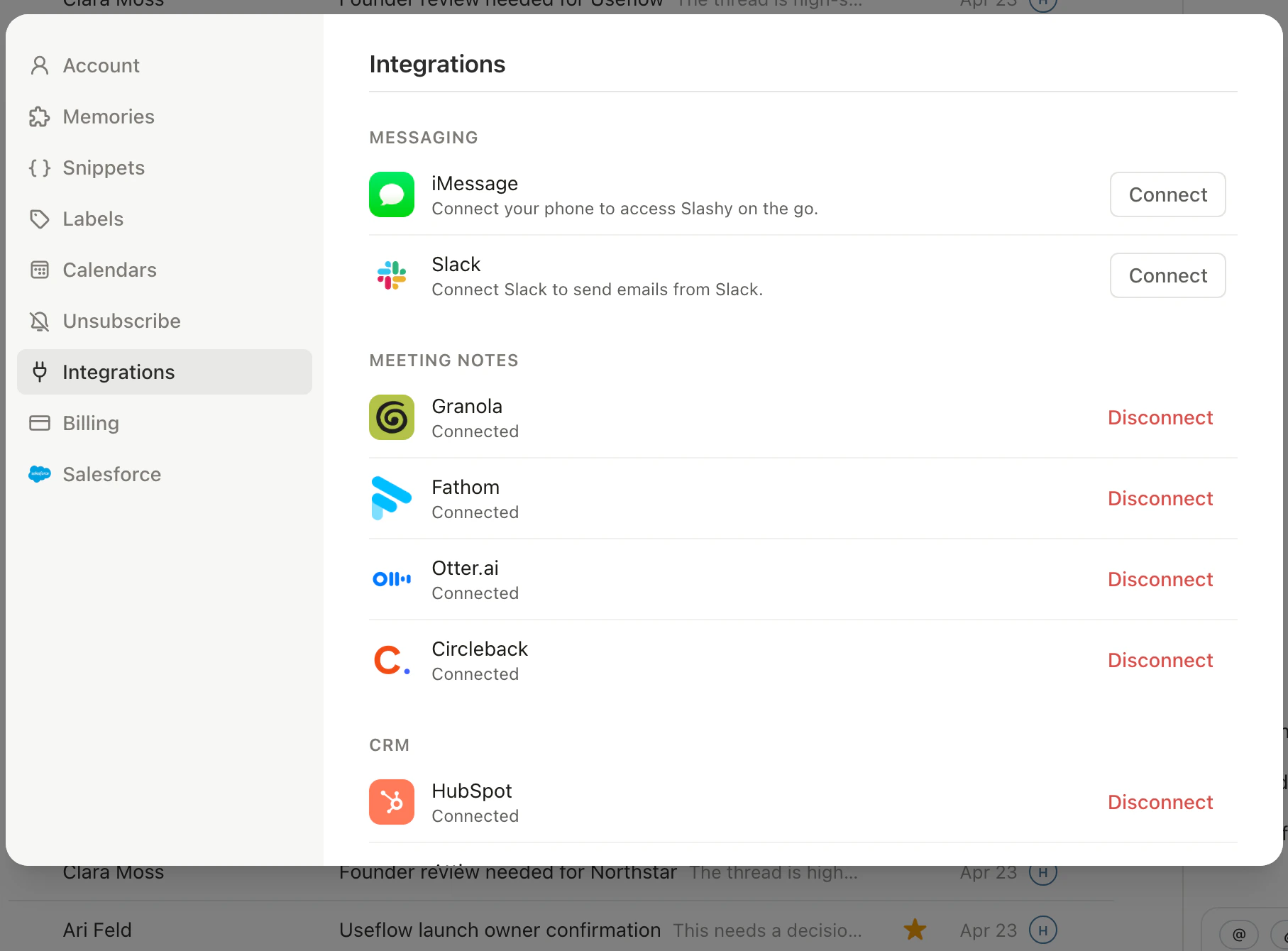
Go to Settings → Integrations → Meeting Notes → Granola and click Disconnect. New meetings stop syncing immediately. Previously synced notes stay on the calendar events in Slashy and remain available to the agent. Reconnect any time to resume two-way sync.
Private notes
Notes that stay in Slashy and never sync to Google.
Otter integration
Sync transcripts from Otter.ai.
Fathom integration
Sync recordings and notes from Fathom.
Circleback integration
Pull meeting notes from Circleback.
Creating events
Make and edit calendar events in Slashy.
Meeting prep
Ask the agent to prep you for any upcoming call.