

Cmd+Shift+L), paste the command, and confirm. Each one takes under two minutes to set up.
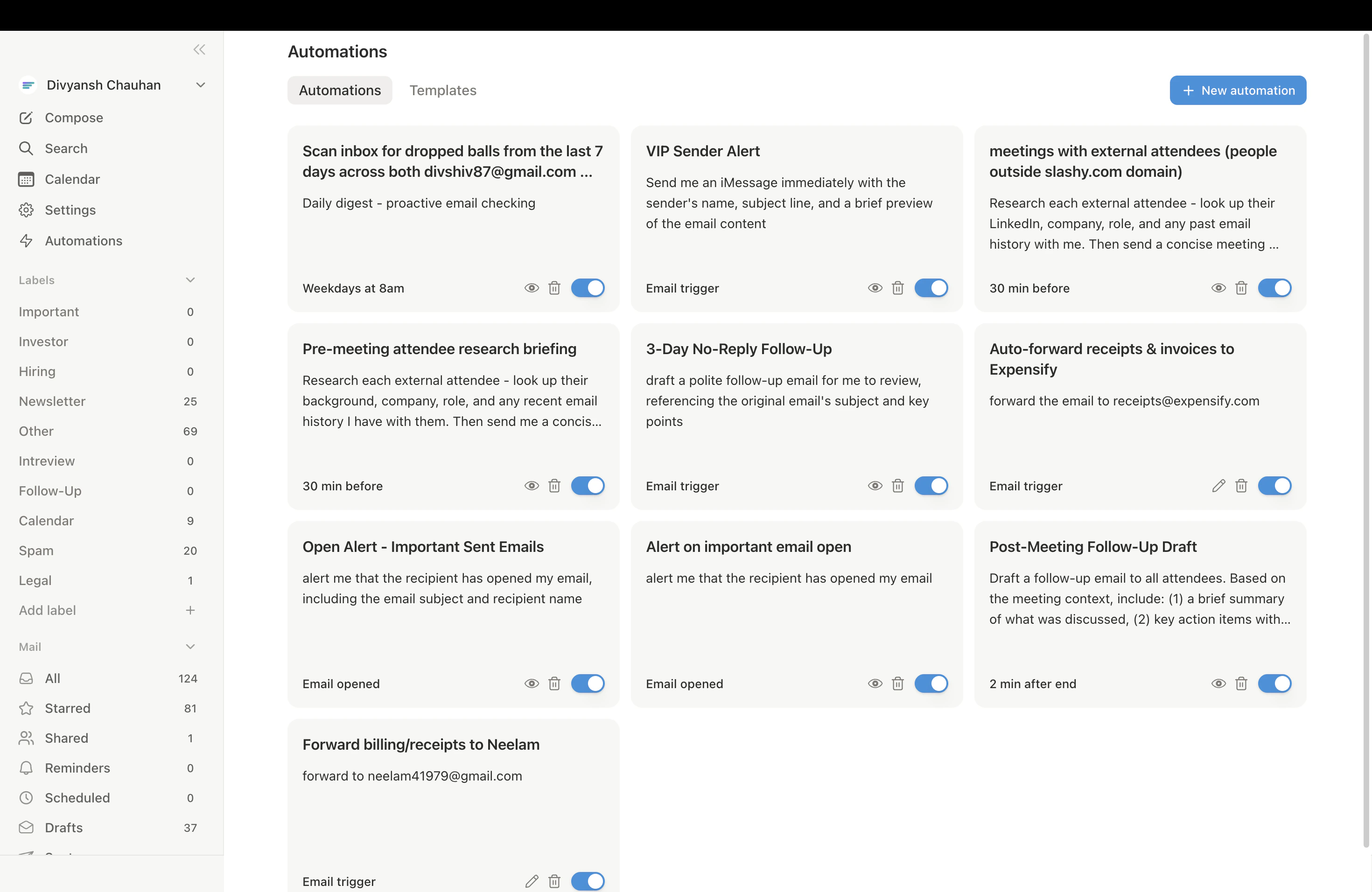
Recipe 1: Auto-Forward Receipts to Your Accountant
Automatically forward receipts, invoices, and payment confirmations to your bookkeeper or expense tool.Paste this command
“When I receive an email that is a receipt, invoice, or payment confirmation, forward it to receipts@expensify.com. Don’t forward subscription renewal notices or marketing emails.”
Replace
receipts@expensify.com with your Expensify, Ramp, Brex, or accountant’s intake email address.Recipe 2: Send Meeting Prep 30 Minutes Before External Calls
Get attendee research, recent email threads, and suggested talking points before every external meeting.Paste this command
“30 minutes before any meeting with external attendees, research all attendees and send me a meeting prep briefing on iMessage. Include their LinkedIn summary, our recent email history, and any open threads. Skip internal-only meetings.”
Recipe 3: Daily Dropped Ball Scanner at 8am
Every morning, get a summary of emails you forgot to reply to, commitments you made but have not followed up on, and threads where someone is waiting on you.Paste this command
“Every weekday at 8am, scan my inbox for dropped balls: emails I sent with no reply in 7 days, emails I received but didn’t respond to where a response is expected, and commitments I made in email that I haven’t followed up on. Send the summary on iMessage.”
Recipe 4: VIP Email Alerts with Visual Preview
Get an instant iMessage alert with a screenshot preview when specific people email you.Paste this command
“When I receive an email from anyone @sequoia.com, anyone @bigclient.com, or my co-founder alex@mycompany.com, send me an iMessage alert with a visual preview of the email.”
Replace the domains and addresses with your own VIPs. You can also use conditions like “any email with ‘urgent’ in the subject” or “anyone in my Investors label.”
Recipe 5: Post-Meeting Follow-Up Drafts
Automatically draft a follow-up email to all attendees after every external meeting ends.Paste this command
“5 minutes after any external meeting ends, draft a follow-up email to all attendees. Include a brief summary of the meeting context based on our email history and a ‘Next Steps’ section. Don’t send it — save as draft for my review.”
Recipe 6: Weekly Email Digest Every Friday
Get a categorized summary of your entire email week — what is resolved, what is pending, and who you owe replies to.Paste this command
“Every Friday at 3pm, review my email from this week. Categorize into: resolved threads, pending threads waiting on others, emails I owe replies to, and important threads to watch next week. Send the summary on iMessage.”
More recipes by role
Each of these is a command you paste into the agent sidebar (Cmd+Shift+L) and confirm. Edit any wording to fit your workflow.
Sales and outbound
Follow up when a prospect opens but doesn’t reply. Pairs open tracking with a timed nudge.“When someone opens an email I sent but hasn’t replied within 3 days, draft a short follow-up and text me that it’s ready.”Bump anyone who goes quiet for 7 days.
“If I sent an email and there’s no reply after 7 days, draft a follow-up bump on the same thread for my review.”Run a multi-step follow-up sequence. Slashy can stage follow-ups at a cadence, so a no-reply keeps moving until they respond.
“For prospects I email cold, if there’s no reply: draft follow-up one after 3 days, follow-up two after 7 days, and follow-up three after 14 days. Stop the sequence the moment they reply.”Text me the second a customer or prospect emails, and pre-draft a reply.
“When I get an email from anyone in my Customers label, text me right away and draft a reply I can review.”
Recruiting
Draft a reschedule when a candidate no-shows.“When a meeting ends and the other attendee didn’t join, draft a polite reschedule email offering two new times.”Auto-reply to scheduling requests with your link.
“When someone asks to find a time to meet, reply with my booking link and a friendly note.”
Founders and investors
Always BCC the person who introduced you.“Whenever someone introduces me to a new person over email, draft my reply and always BCC the introducer.”Label every intro so they live in one place.
“When an email is an introduction, apply the Introductions label and text me a one-line summary.”Decline cold pitches warmly.
“When I get unsolicited cold outreach from a founder, draft a warm but firm decline that thanks them, says it’s not a fit right now, and keeps the door open.”
Customer success
Catch onboarding emails you didn’t get to.“If I haven’t replied to an email from an onboarding customer within 2 business days, send an auto-reply pointing them to onboarding@mycompany.com and text me.”
Executives
Tell attendees you’re running late, by text.“When I text you ‘running late’, message everyone on my next meeting that I’ll be about 5 minutes behind.”
Managing Your Automations
All automations live in Settings > Automations (Cmd+,). You can toggle, edit, or delete any automation. You can also manage via the agent sidebar:
- “List my automations”
- “Disable the receipt forwarding trigger”
- “Change my dropped ball scanner to 9am instead of 8am”
Related Articles
10 Automations Every User Should Set Up
The full list of must-have automations
Automations Overview
How automations work under the hood
Email Triggers
Match conditions in natural language
Calendar Triggers
Automate around your meetings